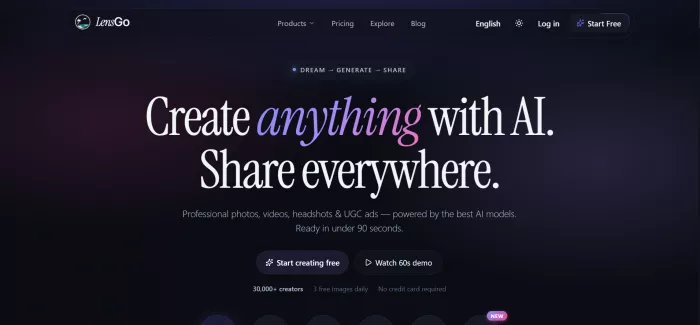
I've lost count of how many "all-in-one" AI tools I've tried that turned out to do one thing well and five things badly. So when I kept seeing LensGo.ai pop up in creator forums — usually next to a screenshot of someone's anime-style video or a suspiciously good "travel" photo of a person who clearly never left their apartment — I wanted to find out whether it actually holds up.
Enter LensGO AI
This review is the result. I dug through the live product, pulled together what real users are saying across creator review sites and Reddit, and broke down exactly how the tool works under the hood. If you're trying to decide whether LensGo deserves a spot in your workflow (and your budget), this should save you the trial-and-error.
Rating: 4.2 / 5
LensGo AI is a browser-based creative studio that bundles a stack of top-tier AI models — think Veo 3, Kling, Runway, Flux, SDXL, and GPT-style image models — into one subscription so you're not juggling five different tools. It turns text prompts, photos, or existing clips into polished images and short videos, usually in well under a minute.
Best for: Solo creators, social media managers, small e-commerce sellers, travel bloggers, and anyone who needs a steady stream of decent visuals without hiring a designer or filming anything.
Think twice if: You need pixel-perfect, repeatable, art-director-level control, or you're working on an older laptop that struggles with heavy video rendering.
Free to try: Yes — 3 images a day, no credit card.
Lensgo AI is a web-based tool that creates images and videos from simple text or photos. You type what you want, or upload a picture, and the AI makes it for you. No camera. No Photoshop. No editing skills needed.
The thing that sets it apart is simple: it puts a lot of top AI models in one place. Instead of paying for five different tools, you get models like Veo 3, Kling, Runway, Flux, and GPT Image 2 under one login. You just pick the right one for the job.
It runs in your browser, so there's nothing to download. The company says more than 30,000 creators have used it, with images generating in about 30 seconds on average. That speed, honestly, is the first thing you notice.
I'll be honest: the fastest way to learn this tool is to just make something. So instead of dry instructions, let me walk you through exactly how I made my first image — a header photo for a blog post about slow mornings — from start to finish. The whole thing took about two minutes.
Sign up free
I went to lensgo.ai and made an account with my email. No card, no long form. I was on the dashboard in under a minute.
Open the Studio
This is the main workspace where you type prompts and generate images. (The other tab, Flow, does the work for you — more on that below.)
Write your first prompt
I kept it simple and typed: "a cozy coffee shop at sunset." Fair warning — lazy prompts give you generic results. My first image looked okay but flat, like a stock photo I'd seen a hundred times before.
Add detail and pick the right model
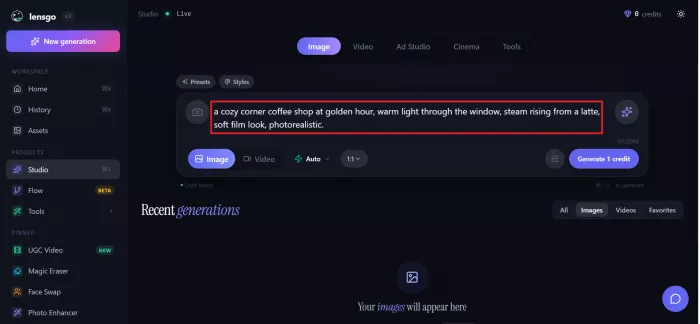
This is where it got good. I rewrote the prompt with real specifics: "a cozy corner coffee shop at golden hour, warm light through the window, steam rising from a latte, soft film look, photorealistic." Then I switched from the default model to a photoreal one. This one choice matters more than anything else — the same words run through a photoreal model versus an anime model give you two completely different pictures.
Hit generate and wait
About 30 seconds later, my image was ready. The golden light, the steam off the cup, the warm corner-table vibe — it actually nailed it this time.
Refine until it's right
My version was a touch too dark on one side, so I added "bright and airy" to the prompt and ran it again. Another 30 seconds. Once I was happy, I sent it through the built-in upscaler to sharpen it for a full-width blog header.
Download
One click and the high-res file was on my computer, ready to post.
Pricing is simple, which I appreciate. There are three plans, plus credit packs if you just need a quick top-up.
| Plan | Price | What you get |
| Free | $0 | 3 images a day, watermarked, no credit card needed |
| Traveler | ₹799 / month | 50 credits, HD, all tools, no watermark |
| Creator | ₹1,499 / month | 100 credits, HD, AI video, UGC ads, headshots, no watermark |
| Studio | ₹2,999 / month | 500 credits, priority generation, API access, white label, all tools |
My honest read: the free plan is fine for testing, but the watermark means it's not for real work. The cheapest way to drop the watermark is the ₹799 Traveler plan, which gives you all the tools with 50 credits. For most people doing real work, the ₹1,499 Creator plan is the sweet spot — it adds AI video, UGC ads, and headshots. The ₹2,999 Studio plan is for heavy users who need 500 credits, priority speed, or API access.
So how does it stack up? Here's the short version, based on testing and current prices.
Midjourney makes the most beautiful still images, full stop. But it has no free plan, costs $10 to $30 a month, and runs mostly through Discord, which feels clunky if you're used to normal apps.
Runway is the gold standard for serious AI video and editing, starting around $15 a month. It's powerful, but it has a steeper learning curve.
Lensgo sits in the middle, in the best way. It isn't the absolute best at any one thing, but it does many things well, in one place, for less money.
That's the real pitch. If you want one tool that handles images, video, headshots, and ads without juggling subscriptions, Lensgo wins on convenience and value.
This is where I wanted to go past the marketing copy. Here's what the actual feedback looks like once you gather it from creator review sites, communities, and hands-on testers.
On the creator-focused review site aitools.xyz, LensGo holds a 4.70 out of 5 across 40 user reviews — which is high, and tracks with the general sentiment I saw elsewhere: mixed in the details, but positive overall.
What people consistently praise:
What frustrates people:
Pros
Cons
Short answer: yes, it's a legitimate, widely used tool, and plenty of creators rely on it daily. The platform applies content moderation and safety filters to discourage misuse, and on paid plans you retain ownership rights over what you create.
That said, two responsibilities sit with you, not the tool. First, don't feed it inputs that infringe on someone else's copyright — owning your output doesn't override someone else's rights to the source material. Second, use generative video responsibly; the same tech that makes a fun stylized clip can be misused for deepfakes, and that's on the user. Free-plan outputs are watermarked, which the platform uses partly to keep AI-generated content clearly labeled.
Frequently asked questions
After testing LensGo AI across different use cases—image generation, image-to-video animation, and video style transformation—one thing becomes very clear:
LensGo AI is not built for perfection. It is built for speed, simplicity, and creative output.
This is where it fits nicely in today’s content ecosystem.
Most AI tools fall into two extremes:
Either they are too complex for beginners
Or they are too limited for serious creators
LensGo AI sits somewhere in the middle. It doesn’t try to replace professional editing software like high-end video editors or studio tools. Instead, it focuses on helping you quickly turn ideas into usable visual content.
a place where users could create interactive characters, explore long...
A detailed Luminarbrush.ai review based on real usage, exploring its l...

Dopple AI is not trying to be a productivity tool or a general assista...

An AI system that trades across multiple markets and generates passive...

designed specifically for hospitals, clinics, and healthcare networks...

Akool is one of the few platforms that actually bridges that gap, and...

Discussion