AI video generation is moving fast, and new tools appear almost weekly promising to turn simple prompts into cinematic motion. Among them, PixVerse AI has gained unusual attention. Not just from casual experimenters, but from social media creators, digital artists, and marketers looking for faster visual production.
But visibility does not equal clarity.
Many people searching for a PixVerse AI review are not trying to admire the technology. They want answers to practical questions:
This guide is designed to answer those questions directly. Not as a promotional overview, and not as a shallow tutorial, but as a realistic explanation of what the PixVerse AI video generator does well, where it struggles, and how creators can actually use it.
If you are considering using PixVerse AI, this article should remove most uncertainty.
AI video generation has a core problem: turning ideas into moving visuals usually requires time, skill, and expensive software.
Traditional workflows involve:
1. Storyboarding
2. Filming or 3D rendering
3. Editing and compositing
4. Motion design
5. Post production
Even short clips can take hours or days to produce.
PixVerse AI positions itself as a shortcut to that process. Its core promise is simple: generate animated video clips directly from text or images, with minimal manual editing.
That promise is not unique. The current generative media landscape includes multiple tools trying to solve the same challenge. What makes PixVerse stand out is how it combines three factors:
1. Speed
Clips can be generated quickly compared to manual animation.
2. Visual motion emphasis
Many AI tools produce static images. PixVerse focuses heavily on movement and transformation.
3. Accessibility
The interface is designed for non technical users rather than professional 3D artists.
Creators searching for PixVerse are usually looking for one of three things:
In short, attention is driven less by hype and more by a practical desire to produce motion without complexity.
At its core, PixVerse is a generative video system. It creates short animated sequences based on prompts or visual input.
The platform focuses on short form motion generation rather than long cinematic scenes. Its main functions include:
1. Text to video generation
Describe a scene or action and generate an animated clip.
2. Image to video animation
Upload a static image and create movement or transformation.
3. Stylized visual effects
Apply artistic or cinematic looks during generation.
4. Motion interpretation
The system attempts to infer camera movement, environment changes, or character motion from prompts.
It is important to understand what it does not do. PixVerse is not a full video editor. It does not replace traditional editing software for complex timelines, sound design, or scene sequencing.
It generates clips. You assemble them elsewhere if needed.
PixVerse typically accepts three main input forms:
You describe the visual concept, mood, and action.
You provide a visual starting point that becomes animated.
Some generation settings allow you to influence visual style or movement behavior.
The more specific the input, the more directed the result. Vague prompts produce unpredictable motion.
Results can range from impressive to inconsistent. Atmospheric scenes, abstract visuals, and stylized motion tend to work better than realistic human performance.
Generation is usually fast compared to traditional rendering. Short clips often render within minutes depending on server load and settings.
Control exists, but it is indirect. You guide outcomes through prompts rather than direct manipulation. This is typical for generative systems, but it means precision is limited.
PixVerse excels at suggestion based motion rather than exact animation control.
Here is a clear, practical step-by-step example showing exactly how to use PixVerse AI to generate a video clip from start to finish. This is written like a real creator workflow, not abstract instructions.
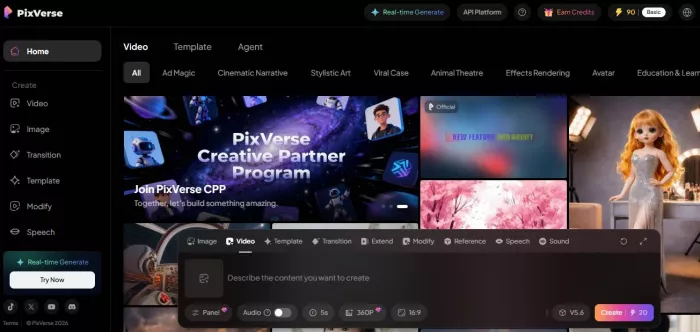
Go to the PixVerse platform and log into your account.
After logging in, you will land on the main generation workspace. This is where you create videos.
You will usually see:
Do not rush to generate immediately. Look at what settings are available first.
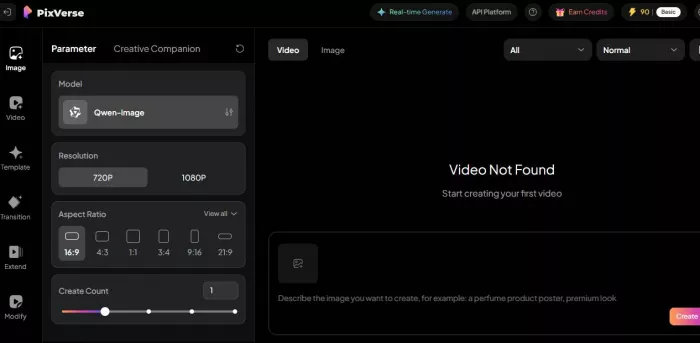
For example, we are using Text-to-Video generation.
That means PixVerse will create motion entirely from your written description.
If you wanted to animate an existing picture, you would choose Image-to-Video instead.
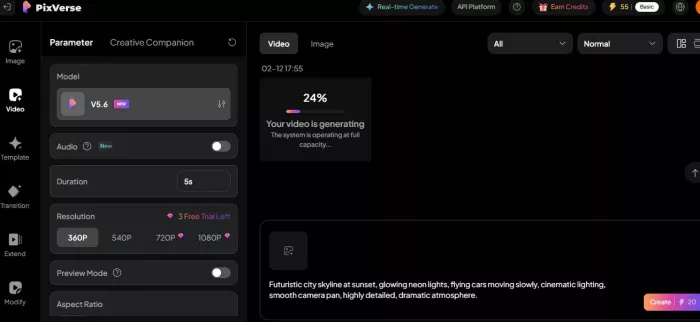
In the prompt box, type a specific visual description with motion.
“Futuristic city skyline at sunset, glowing neon lights, flying cars moving slowly, cinematic lighting, smooth camera pan, highly detailed, dramatic atmosphere.”
Notice what this includes:
1. Environment
2. Time of day
3. Motion
4. Mood
5. Camera movement
6. Visual quality
This helps PixVerse understand what to animate.
“City with lights.”
Too vague. You will get random motion.
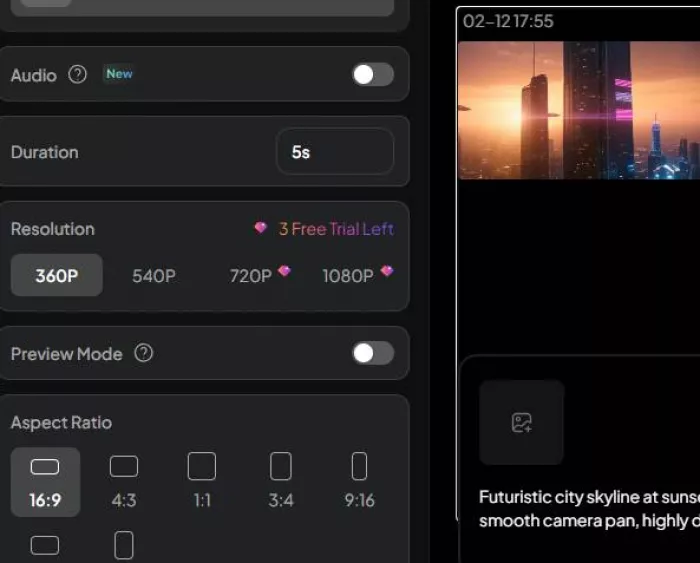
Depending on what PixVerse offers, set:
1. Duration- Choose 5–8 seconds (good for social media clips).
2. Style- If available, choose cinematic, realistic, or stylized depending on your goal.
For this example → choose cinematic.
3. Motion intensity- Keep moderate. Very high motion can create distortion.
4. Resolution / quality- If you have the option, choose higher quality for final output.
Beginners often skip these controls — but they heavily affect results.
Press the Generate button.
PixVerse will process the prompt and render the video. This may take seconds to a few minutes depending on:
While rendering, do not leave the page unless it auto saves.
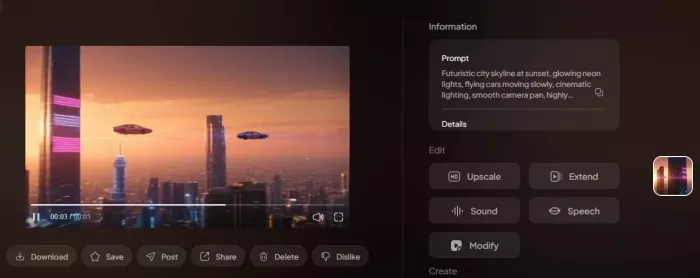
When the video appears, watch it completely.
Check for:
a. Smooth motion
b. No strange object warping
c. Lighting consistency
d. Natural camera movement
If anything looks wrong, do NOT download yet. Instead, refine the prompt.
Most creators generate 2–5 versions before choosing one.
Example improvements:
If motion is too chaotic → add
“slow smooth movement”
If lighting looks dull → add
“dramatic cinematic lighting”
If scene lacks detail → add
“highly detailed environment”
Generate again.
This is normal workflow. AI video creation is iterative.
Once satisfied:
Click download or export.
Now you can use the clip in:
PixVerse creates the clip. Final editing happens elsewhere.
PixVerse is most useful when speed and visual experimentation matter more than precision.
Short dynamic clips for reels, posts, or visual hooks work well. Atmospheric backgrounds, abstract motion, and visual transitions perform reliably.
Where it struggles:
1. Dialogue driven scenes
2. Detailed character acting
PixVerse can generate mood shots, environmental transitions, and visual storytelling fragments.
It works best for:
1. Establishing shots
2. Surreal sequences
3. Concept visualization
It struggles with:
1. Narrative continuity across multiple shots
2. Character consistency
Brands can generate quick animated visuals for digital ads, product backdrops, or attention grabbing loops.
Effective for:
1. Visual mood setting
2. Background motion
3. Concept demonstration
Less effective for:
1. Precise product representation
2. Controlled brand identity visuals
This is where PixVerse often shines.
Artists can explore:
1. Abstract motion
2. Dreamlike transformations
3. Visual reinterpretation
Unpredictability becomes a creative advantage rather than limitation.
1. Social media creators needing fast visuals
2. Concept artists exploring motion ideas
3. Marketers producing lightweight digital content
4. Designers experimenting with generative aesthetics
1. Professional filmmakers needing precise control
2. Editors requiring long structured timelines
3. Brands needing exact visual consistency
4. Character animation specialists
Traditional tools remain superior where precision matters.
So is PixVerse genuinely useful or just hype?
It is useful, but only when used for the right purpose.
PixVerse is not a replacement for professional animation. It is not a complete filmmaking solution. It is not a fully controllable motion engine.
It is a rapid visual generation tool that excels at:
1. Speed
2. Atmosphere
3. Experimentation
4. Idea visualization
Its long term potential depends on improvements in consistency and control. If those improve, tools like PixVerse could become core parts of creative pipelines rather than experimental add ons.
For now, the practical recommendation is simple:
Use PixVerse AI when you want fast, visually engaging motion without technical complexity.
Do not use it when precision, continuity, or realism must be exact.
If you approach it with realistic expectations, it becomes a powerful creative accelerator. If you expect full production control, it will feel limited.
Understanding that difference is what makes PixVerse AI genuinely useful.

There was a time when manual Google Ads management was a competitive a...
Artificial intelligence is no longer a peripheral tool in the justice...

Long-form video is still king for depth, but short-form clips dominate...
San Francisco, February 2026 — Samsung has officially set the sta...

Geek culture has grown massively over the years, spreading from niche...

If you’ve built automations before, you already know the old model: tr...

Discussion